Introduction
This is a new article series in which we will build a Pattern Brush using JavaScript and SVG!
A pattern brush is when we apply a texture along a given path. Think about the Pen tool in most graphic programs, and replace the line with a texture!
Using SVG will let us use vectors, and therefore keep a perfect quality even when scaled and distorted along the curve.
Here is the expected result we will achieve after the complete series:

In this first post, we will build our application setup, and obtain a simple bézier curve playground.
You can find the final source code on Gitlab.
Table of contents
Building the playground
As we will work and interact with the data a lot, it is important for us to have a beautiful playground, in which we can see our progress and the details of our work.
The first thing we need is an empty index.html page, with our SVG wrapper:
<meta charset="utf-8" /> <svg></svg>We want it to take the full page at the moment, as we don’t have anything else to display. This is why we add the width and height property:
<meta charset="utf-8" /> <svg width="100%" height="100%"></svg>The first step towards this playground is its background!
I believe a light grid is the best background to easily compare sizes, finding its coordinates and ensuring two points are on the same axis, so let’s start by building it!
Building the grid
A grid is basically a bunch of squares, for the full width and height of our page.
Thankfully, we won’t have to draw them manually!
SVG Patterns will let us define a single square, and tell the page to repeat it until it fills the whole page.
On the pattern, we add the patternunits attribute to make it fill the complete size.
I then defined a svg rectangle (<rect>), gave it a width and height of 100%.
<svg width="100%" height="100%">
  <defs>
    <pattern id="grid" width="10" height="10" patternunits="userSpaceOnUse">
      <rect
        width="10"
        height="10"
        fill="#FFFFFF"
        stroke="#dddddd"
        stroke-width="1"
      ></rect>
    </pattern>
  </defs>
  <!-- Grid background -->
  <rect x="0" y="0" width="100%" height="100%" fill="url(#grid)"></rect>
</svg>
This gives us a nice light grid pattern!

Adding the curve
Our curve is a cubic Bézier Curve. We will cover more about the curve itself in the Understanding Bézier section later on, so don’t worry if you don’t know what it is yet.
Thankfully, this curve is a native form the Path svg element.
To make a cubic Bézier, in which you have the 4 control points, you need to add two different path commands: M and C
- M: Move to the given coordinates
- C: Create a cubic Bézier curve. The current position act as the first control point,
P0, and the next three set of coordinates are the final three control points:P1toP3
The curve will start with the following control points:
- P0: 100, 100
- P1: 300, 100
- P2: 100, 300
- P3: 300, 300
The resulting HTML is therefore:
<path
  d="M100,100 C300,100 100,300 300,300"
  id="bezier-curve"
  fill="none"
  stroke="black"
></path>
I also added the fill and stroke attributes to make a black line.

Adding the control points
Our curve will have 4 control points, at the position previously mentioned.
I want nice handles, and as such, they will be composed of more than one svg element.
This means we will need to perform two extra manipulations:
- Make a CSS custom property, or css variable, with the color of our handle.
- Make a SVG group, and position it correctly.
Let’s start with the style. On the upper part of our SVG, let’s add the following style element:
<svg width="100%" height="100%">
  <style>
    :root {
      --p0Color: #e88178;
      --p1Color: #97d5e8;
      --p2Color: #98e890;
      --p3Color: #e8aee4;
    }

    .point-wrapper {
      cursor: pointer;
    }
  </style>

  <!-- ... -->
</svg>
I defined four color, one per control point.
I also set the cursor to a pointer on the point-wrapper class, which we will assign on our groups. This makes it more obvious that the items will be interactive!
Now, for the group:
<g id="point-0" class="point-wrapper">
  <circle r="4" fill="var(--p0Color)" cx="20" cy="20"></circle>
</g>
Here, we define our first group, with the id point-0, and the point-wrapper class.
Inside this group, I created a circle, gave it a radius of 4, and gave it a fill of the --p0color custom property.
The circle also is at the position 20,20 so we can fully see it, but we’ll position it correctly shortly.
Now, as mentioned, I want a nice control point, so let’s make it nicer! I want a larger dotted outline around the circle, like in the cover image.
<g id="point-0" class="point-wrapper">
  <circle r="4" fill="var(--p0Color)" cx="20" cy="20"></circle>
  <circle
    r="8"
    fill="none"
    stroke="var(--p0Color)"
    stroke-width="2"
    stroke-dasharray="2"
    cx="20"
    cy="20"
  ></circle>
</g>
Here, what I did is make a bigger circle, with a radius of 8, no fill, the same stroke color as the previous circle, and a stroke-dasharray of 2.
The stroke-dasharray is what makes the outline dotted, while the other properties are to hide the inner circle and only display its stroke.
One thing you might notice if you hover the circles is that the cursor doesn’t change to a pointer if you’re not on either the stroke or on the center circle.

In order to fix this, we will need to add a third transparent circle inside the group.
<g id="point-0" class="point-wrapper">
  <circle r="8" fill="rgba(0,0,0,0)" stroke="none" cx="20" cy="20"></circle>
  <circle
    r="4"
    fill="var(--p0Color)"
    stroke="var(--p0Color)"
    cx="20"
    cy="20"
  ></circle>
  <circle
    r="8"
    fill="none"
    stroke="var(--p0Color)"
    stroke-width="2"
    stroke-dasharray="2"
    cx="20"
    cy="20"
  ></circle>
</g>
Finally, one last thing I dislike about those circles is the position. I’d rather position the whole group instead of each circle individually!
To do this, we will use the transform attribute, and translate the new position.
With this manipulation, we will also remove the cx and cy attributes of our circles, which is equivalent of setting it to 0.
<g id="point-0" class="point-wrapper" transform="translate(100,100)">
  <circle r="8" fill="rgba(0,0,0,0)" stroke="none"></circle>
  <circle r="4" fill="var(--p0Color)" stroke="var(--p0Color)"></circle>
  <circle
    r="8"
    fill="none"
    stroke="var(--p0Color)"
    stroke-width="2"
    stroke-dasharray="2"
  ></circle>
</g>
Note the translate(100,100) here, which is the x and y coordinates of our first control point.
Repeating this four times, once per control point, and we get this nice result!

Adding lines between control points
At the moment, we have two control points which seem to be floating: P1 and P2!
(Remember, the points start at 0, like the array index in sane languages!)
I’d like to link those to P0 and P3 respectively, like it usually is with a pen tool.
Here is how I achieved this, using the line element:
<style>
  --point-to-point-color: #555;
</style>
<!-- ... -->
<line
  id="p0-to-p1"
  x1="100"
  y1="100"
  x2="300"
  y2="100"
  stroke="var(--point-to-point-color)"
  stroke-dasharray="4 2"
></line>
<line
  id="p2-to-p3"
  x1="100"
  y1="300"
  x2="300"
  y2="300"
  stroke="var(--point-to-point-color)"
  stroke-dasharray="4 2"
></line>
Here, I made two lines: P0-P1 and P2-P3.
I styled them a bit, giving them a stroke color and making them dashed.

We now have great visuals for the curve! We can therefore proceed to the next step:
Making it interactive
Here, we can bring our project to the next level.
By making it interactive, it makes it easier to see which coordinates gives the best result, and gain a better understanding of it.
Later on, by displaying our own data on top of the curve, we will ensure our algorithm is working correctly and find bugs to fix.
Making a Bezier class
To store and interact with the data, we can create a new class: Bezier.
Before making the class itself, we need to add few things:
- A
control.jsfile, which will contain the controls themselves - A
bezier.jsfile, which will contain and export the class.
Let’s start by adding the control.js script at the end of our page
<script src="./control.js" type="module"></script>Notice the type="module" attribute, which lets us use the ES6 module syntax.
Let’s start with bezier.js
First, I want a Vector class, which simply contains a x and y property
export class Vector {
  constructor(x, y) {
    this.x = x;
    this.y = y;
  }
}
Then, the basic structure of the curve:
export default class Bezier {
  constructor(p0, p1, p2, p3) {
    this.p0 = p0;
    this.p1 = p1;
    this.p2 = p2;
    this.p3 = p3;
  }
}
Now, to easily convert the curve to a svg path, let’s add a pathString method, which builds the path d attribute value:
export default class Bezier {
  constructor(p0, p1, p2, p3) {
    this.p0 = p0;
    this.p1 = p1;
    this.p2 = p2;
    this.p3 = p3;
  }
  pathString() {
    return `M${this.p0.x},${this.p0.y} C${this.p1.x},${this.p1.y} ${this.p2.x},${this.p2.y} ${this.p3.x},${this.p3.y}`;
  }
}
The next step is to create our instance, so let’s move in control.js
import Bezier, { Vector } from "./bezier.js";

const curve = new Bezier(
  new Vector(100, 100),
  new Vector(300, 100),
  new Vector(100, 300),
  new Vector(300, 300),
);
Let’s also add few utilities, references towards the various elements we will modify.
const $ = document.querySelectorAll.bind(document);
const [wrapper] = $("svg");
const [pathElement] = $("#bezier-curve");
const points = $(".point-wrapper");

const [p0toP1] = $("#p0-to-p1");
const [p2toP3] = $("#p2-to-p3");
Finally, we can create a method which will update the adequate attributes:
function redrawCurve() {
  pathElement.setAttribute("d", curve.pathString());

  // Redraw lines between 0-1 and 2-3
  p0toP1.setAttribute("x1", curve.p0.x);
  p0toP1.setAttribute("y1", curve.p0.y);
  p0toP1.setAttribute("x2", curve.p1.x);
  p0toP1.setAttribute("y2", curve.p1.y);

  p2toP3.setAttribute("x1", curve.p2.x);
  p2toP3.setAttribute("y1", curve.p2.y);
  p2toP3.setAttribute("x2", curve.p3.x);
  p2toP3.setAttribute("y2", curve.p3.y);

  // Reposition control points
  for (let i = 0; i < 4; i++) {
    const pointGroup = points[i];
    const pointVector = curve[`p${i}`];
    pointGroup.setAttribute(
      "transform",
      `translate(${pointVector.x},${pointVector.y})`,
    );
  }

  // Draw progress points
  drawProgress(curve, progressGroup);
}
Dragging a point
Few event listeners are needed to find out when we click and drag an element. The relevant ones are the following:
Mousedown- To find out when we click on an itemMousemove- When the mouse is moving an itemMouseup- Stopping the movement event
As we can only move our four control points, we will also save the index of the point being dragged.
let draggedElementIndex = -1;
points.forEach((point, index) => {
  point.addEventListener("mousedown", ({ clientX, clientY }) => {
    const currentPosition = curve[`p${index}`];
    draggedElementIndex = index;
  });
});wrapper.addEventListener("mouseup", (e) => {
draggedElementIndex = -1;
});Finally, we can make the mousemove event:
wrapper.addEventListener("mousemove", ({ clientX, clientY }) => {
  if (draggedElementIndex !== -1) {
    // Update the point position
    const point = curve[`p${draggedElementIndex}`];
    point.x = clientX;
    point.y = clientX;

    // Re-draw the curve
    redrawCurve();
  }
});
You might notice the mouseup and mousemove events are on the wrapper, and not on the points themselves like the mousedown event.
There are few reasons why I made it this way:
- If you move your cursor very quickly, you might move it outside of the point itself. Having the event on the wrapping object ensures that we can move the point on the whole canvas instead!
- If you were dragging two control points on top of each other, the
mousemoveevent would trigger on the top item only. This would break the movement flow if you were moving the bottom item.
This is also the reason why the currently moving item is stored in an external variable, and not only handled via the events!
As we made the mousemove and the mouseup event on the wrapper, it is possible for us to leave the svg area, and the movement will resume once we enter the area again.
This isn’t much of an issue at the moment, as our svg element has a width and height of 100%, but could become one later on.
We can solve this issue by adding a mouseleave event, which will be the same as the mouseup event:
wrapper.addEventListener("mouseleave", () => {
  draggedElementIndex = -1;
});
We could also use body instead of the svg element to listen for those events, but this would trigger the event whenever we move the mouse, on the whole page.
Calculating the offset
While the difference is minimal at the moment, you might notice that the area of the control point you click isn’t the same area which is dragged. This is because the various mouse events are relative to the body position, while the position we set is relative to the svg element.
We also are setting the center of the circle’s position, we don’t take into consideration the area of the circle we clicked:
If we dragged the circle from its right side, the mouse position would become the center of the circle, which isn’t intuitive.
We can fix this by taking the offset between both of those into consideration!
Here, I added the draggedElementPositionOffset variable, and storing the difference between the position of the mousedown event and the point position.
let draggedElementIndex = -1;
let draggedElementPositionOffset = [0, 0];
points.forEach((point, index) => {
  point.addEventListener("mousedown", ({ clientX, clientY }) => {
    const currentPosition = curve[`p${index}`];
    draggedElementPositionOffset = [
      currentPosition.x - clientX,
      currentPosition.y - clientY,
    ];
    draggedElementIndex = index;
  });
});
Finally, in the mouse move event, we need to take this offset into consideration:
wrapper.addEventListener("mousemove", ({ clientX, clientY }) => {
  if (draggedElementIndex !== -1) {
    // Find the new position
    const newX = clientX + draggedElementPositionOffset[0];
    const newY = clientY + draggedElementPositionOffset[1];

    // Update the point position
    const point = curve[`p${draggedElementIndex}`];
    point.x = newX;
    point.y = newY;

    // Re-draw the curve
    redrawCurve();
  }
});
There we go! With those small changes, we are able to drag the control points, and to modify the curve at will!
Adding points along the curve
The next step is to replicate the curve logic using JavaScript.
As the end goal is to map a texture on the curve, we will need to gain a deep understanding of Bézier curves.
Our objective, to ensure we have a proper curve implemented in JavaScript, is to place a small point every 5% on the curve. This will let us confirm our positioning is correct, as those points should be directly on the curve.
Understanding Bézier
Alright, so what exactly is Bézier?
Bézier curves are an intuitive way of making precise curved lines in most softwares.
You most likely already used Bézier curves without knowing what they were:
- Microsoft paint’s curved line tool
- the Pen tool in most graphic programs, such as Photoshop and Illustrator
- CSS transitions
If there is a curve in modern programs, there is a good chance it’s Bézier.
Bézier curves in Mindomo

The easiest way of visualizing Bésier curves is using the De Casteljau algorithm.
Finding the position at a given time
Let’s start by understanding the algorithm.
Algorithm
The algorithm can be simplified to the following:
- For points
P0toPn, whereTis between0and100% - Create new line segments, using the point
Ton the existing segments to form new lines. This should give you One less lines as the initial amount.
Repeat until only one line remains. - When only one line remain, the position T on the line is the position of the point at this time.
Here are two visual aids to help you understand the algorithm:
Images from Wikipedia

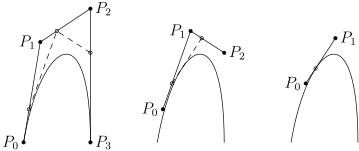
Notice how in the first image, there are 3 points, one of them being control points. This is a Quadratic Bézier curve.
The second one, with 4 points and two control point, is a Cubic Bézier curve.
You can see tons of animations on this medium article about Bézier or the Javascript.info Bézier tutorial, which I both strongly recommend!
Implementation
For the implementation, we will focus on Cubic Bézier curve, which are the most frequent ones. These are the ones with 4 points, from P0 to P3.
The optimal method of finding a position, There is a more optimized, Mathematical, way of finding the points on a curve. This method is using its parametric equation:

p0 * ((1 - time) ³) +
p1 * 3 * (1 - time)² * time +
p2 * 3 * (1 - time) * time² +
p3 * time³
We need to apply this code twice, once for the x and once for the y axis.
Here is how I implemented it in the Bezier class:
export default class Bezier {
  // ... [other methods]

  point(time) {
    const x = this.x(time);
    const y = this.y(time);
    return new Vector(x, y);
  }

  x(time) {
    return this.value(time, "x");
  }

  y(time) {
    return this.value(time, "y");
  }

  /*
   * Parametric function of a cubic bézier curve
   * Applied on the [variable] axis, which is 'x' or 'y'
   */
  value(time, variable) {
    const oppTime = 1 - time;

    return (
      this.p0[variable] * oppTime ** 3 +
      this.p1[variable] * 3 * oppTime ** 2 * time +
      this.p2[variable] * 3 * oppTime * time ** 2 +
      this.p3[variable] * time ** 3
    );
  }
}
Drawing progress circles
There are two things needed to draw the progress position:
- A place in which to store those points
- Actually drawing and updating the position of the points
Let’s start with number 1, and make a SVG group:
<!-- Progress points -->
<g id="progress"></g>
Then, the next step is to draw and update those!
As we will add many different visual effects on the curve later on, I created a visuals folder.
In this folder, I made the progress_points.js file, which exported two methods:
drawProgress, which creates and draws the pointsremoveProgress, which removes those points.
Let’s start by creating a circle model. As it will be positioned and duplicated via JavaScript, I used the document.createElementNS method.
const svgns = "http://www.w3.org/2000/svg";
const model = document.createElementNS(svgns, "circle");
model.setAttribute("fill", "#f00");
model.setAttribute("r", "4");
Then, I made few constants to find the point count, and the time between those:
const PROGRESS_POINT_COUNT = 10;
const PROGRESS_POINT_DISTANCE = 1 / PROGRESS_POINT_COUNT;
Finally, I created the two functions to draw and remove the points:
export const drawProgress = (curve, svgGroup) => {
  removeProgress(svgGroup);

  for (let i = 0; i <= PROGRESS_POINT_COUNT; i++) {
    const instance = model.cloneNode();
    const t = i * PROGRESS_POINT_DISTANCE;

    instance.setAttribute("cx", curve.x(t));
    instance.setAttribute("cy", curve.y(t));
    svgGroup.appendChild(instance);
  }
};

export const removeProgress = (svgGroup) => {
  while (svgGroup.children.length) {
    svgGroup.removeChild(svgGroup.children[0]);
  }
};
In both of these methods, they need the svgGroup argument, which will be the wrapping group we just created.
In the drawProgress method, we also need the Bezier instance, as we need to know where to draw the points.
The only thing remaining is to use those functions, by calling drawProgress inside of the redrawCurve function.
import { drawProgress } from "./visuals/index.js";

// ...

const [progressGroup] = $("#progress");

// ...

const redrawCurve = () => {
  // ...

  // Draw progress points
  drawProgress(curve, progressGroup);
};
You might notice that I import drawProgress from index.js, and not progress_points.js. I ended up creating an index.js file, which has the following content:
export * from "./progress_points.js";This will make it easier to import the various visuals we will have later on.
Conclusion
That’s it!
We now have a fully interactive Bézier playground, with both an SVG curve and the corresponding JavaScript code to find positions on it.
Here is the final application hosted on Glitch, and the source on Gitlab.
Hopefully you enjoyed this first part of the series!
On the next part, we will find out how to find the derivative, normal and length of the curve!
To stay updated with my latest articles, including how I hacked dev.to (again), make sure to follow me on here and on my Twitter!